Chatmake gives you full control over how your chatbot should look like. Just open the "Design" panel from the home screen of the app. From there, you have 3 options:
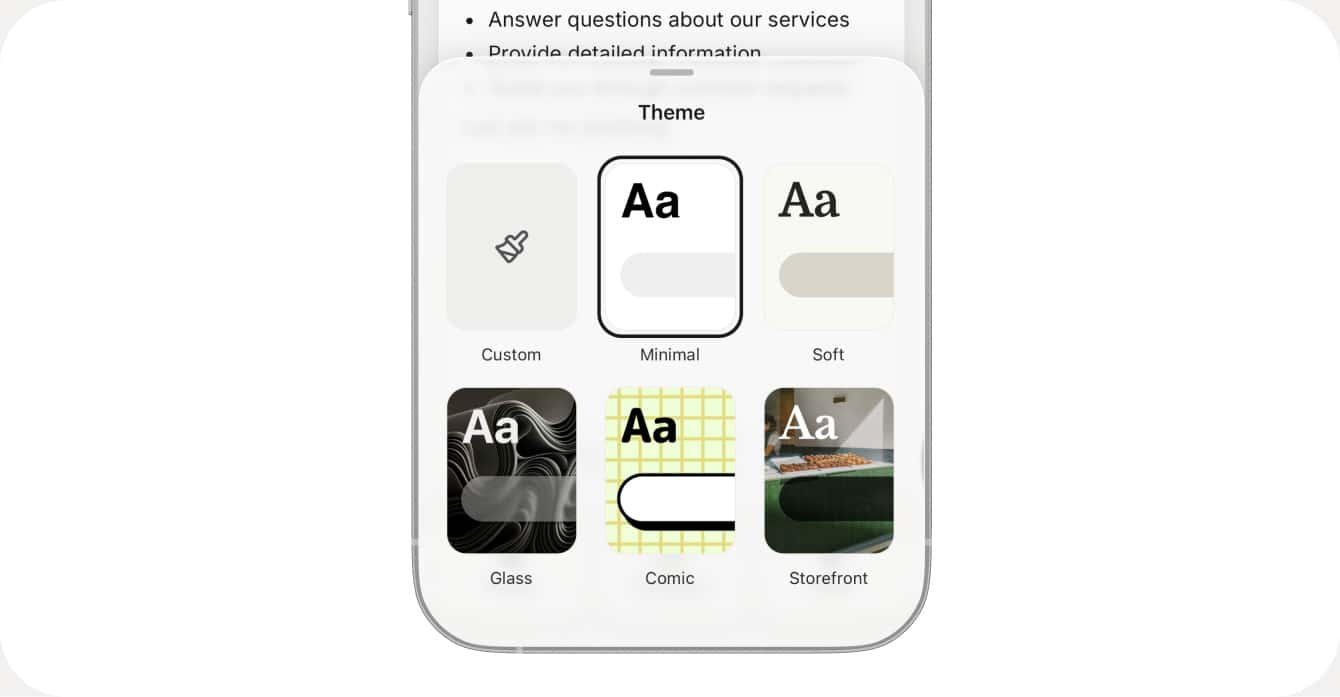
Choose from pre-designed themes that give a disctinct look to your chatbot. Currently we offer 5 themes but more will launch soon so check back to find new design templates in the future. You can also pick "Custom" to customize every part of the chatbot.
The wallpaper menu lets you customize the chatbot background. You can pick a solid color, a gradient with 2 colors or a custom image. Pro-tip: When you use a custom image, make sure you use the Tint slider to adjust the brightness to ensure proper contrast with the messages on top.
The styling panel gives you granular control over different colors and styles. Here you can upload a logo for the chat header and set the position (left, center, rigth). In the "Messages" submenu, you can configure the design of both user and agent messages. You can configure what color the font and the message background has. Lastly the textfield submenu contains design options for the main text field at the bottom of the chatbot. You can choose from different styles, backgrounds and customize the main button color.